Monthly Archives: August 2010

Phone System Issue

As of 9:50am, our phones have gone out and we are unable to make outgoing calls or receive incoming calls. We are working with our telco provider to resolve the issue. If you have an immediate need, please email us at support@internetpro.net with a callback number.

10:20am – Our phone system is back online and we do not anticipate any additional issues.

2011-10-25T19:52:48-05:00August 31, 2010|News and Updates|Comments Off on Phone System Issue

Setting up Email on iPad

The iPad’s Mail App works with MobileMe, Microsoft Exchange, Yahoo! Mail, Gmail, AOL and other IMAP and POP3 email services. Once you have added one of these accounts to your iPad you will be able to send and receive photos, PDF’s, and other attachment types.  These instructions show you how to set up an email address which is hosted by Network Solutions, Inc.   Our email servers support both IMAP and POP3.


Setting Up Initial Email Account on the iPad

The following tutorial assumes you have never added an email account to your iPad.

Add Email Account to iPad

1. Tap on Mail.

how to add email account to ipad 12 225x300 How to Setup Email Accounts on the iPad

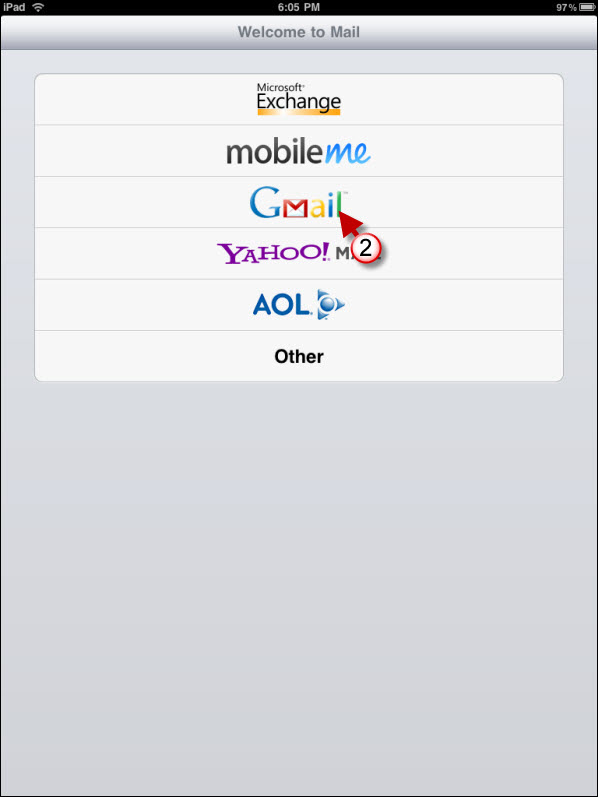
2. For the account type, choose “Other”

how to add email account to ipad 31 225x300 How to Setup Email Accounts on the iPad

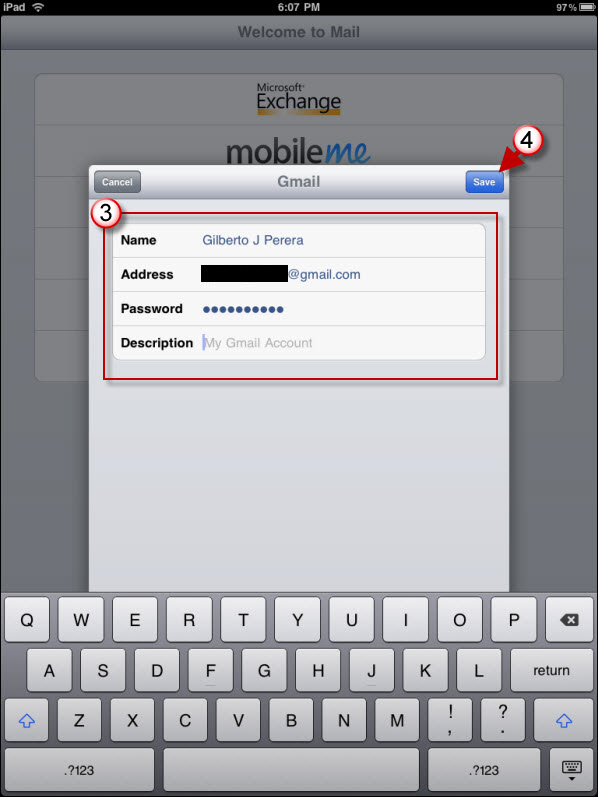
3. Enter your account information.  Your account name will be your entire email address in all lower case.   You can use either POP3 or IMAP for the account type.  See the page at https://www.netsolinc.com/email-settings-2 for the server settings of each type.   Please note that on Apple devices, it will indicate that the username and password for the outgoing (SMTP) server is Optional.  It is NOT optional on our servers if you want to send email.  Please fill out those blanks with the same credentials as you used for the incoming server.


4. Tap Save

Add more email accounts in iPad

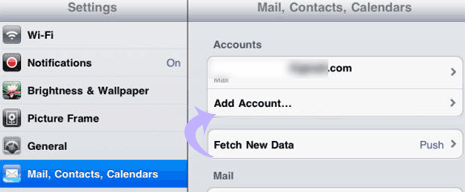
1. Tap ‘Settings’ icon on iPad home screen.

2. Then tap ‘Mail, Contacts, Calendar’ option in the left column.

3. Select ‘Add account’ option under ‘Account’ listing at the top of right column.

4. Follow the instructions for adding initial account above.

2014-12-17T22:52:58-06:00August 11, 2010|Documentation, FAQ|Comments Off on Setting up Email on iPad
Go to Top