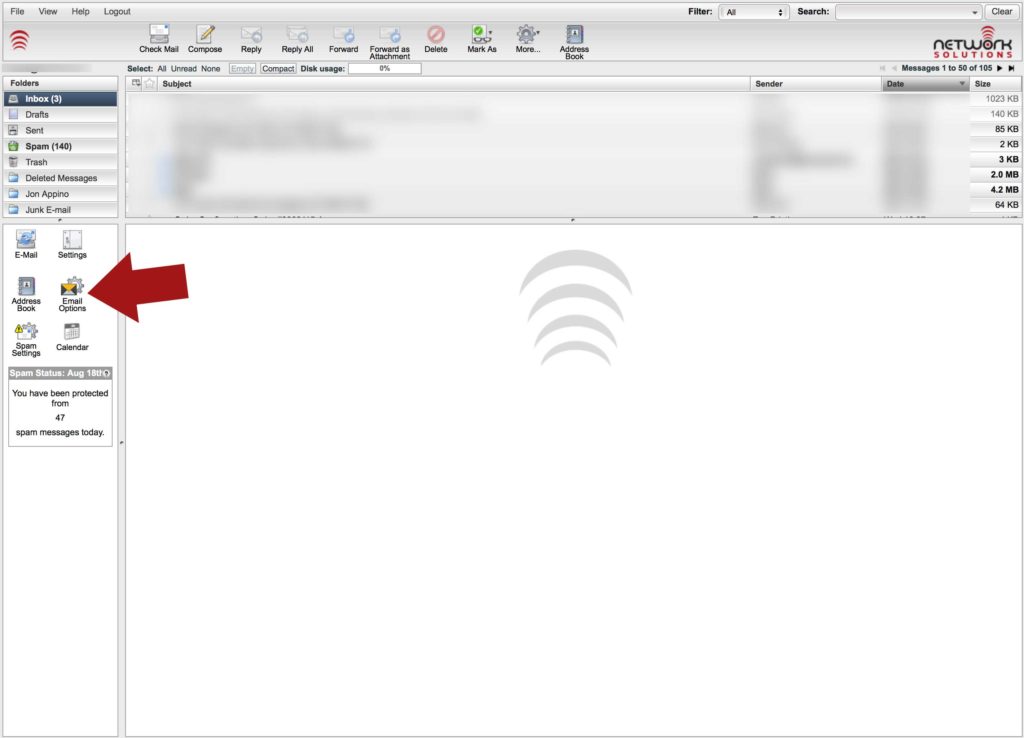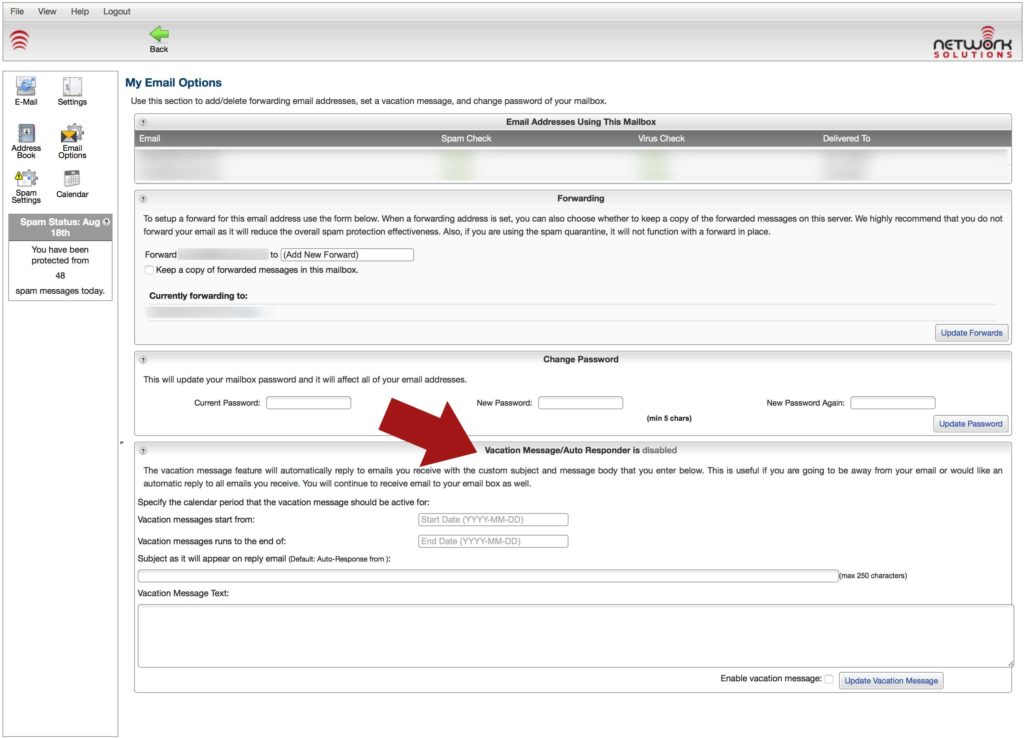
When you are going to be away from your email for a while, it can be helpful to have an automated message that replies to people who send you email. This message can tell people that you are not going to be checking your email for a while, and can let people know when you will be back in touch. These instructions will show you how to set up such a message. These messages are also known as autoresponders.
1) Go to our homepage at http://www.netsolinc.com.
2) In the Online Email Center on the right side of the page, click the link that says “Modify Email Account Settings”.
3) You will be taken to a Mail Administration page. The User Account field will automatically have the word “postmaster” in it. Delete that, and replace it with the first part of your email address. For example, if you were going to put a vacation message for support@internetpro.net, you would put support in the blank which previously contained postmaster.
4) In the second blank, labeled Domain Name, you will put the second part of your email address. In our example using support@internetpro.net, internetpro.net would go in this field.
5) Enter your email address password.
6) You will be taken to a page where you can change several settings. About half way down the page, place a check mark next to “Send Vacation Auto-Response”.
7) Fill in the subject of your message (for example, “Out of office from 6/22 – 6/27)
8 ) Fill in the rest of the message in the next blank. You should detail when you will be back and what to do if the issue is an emergency.
9) Hit the “Modify User” button.
10) We recommend that you send yourself an email to test the autoresponse.
That’s it! Don’t forget to remove the message when you get back in town. Just follow the same instructions except that you will remove the check mark next to “Send Vacation Auto-Response”.