
News and Updates

This category contains information about events that may affect your service such as maintenance or outages. It also contains announcements on new products releases and enhancements.

Massive Windows Issues (Panda Antivirus)

Note: These instructions are changing as we get more information. Please do not print these instructions for reference as they change often.  Also, there are many links on this page which cannot be clicked on a printed page.    Please read the entire page as some instructions have  superseded earlier posts.

March 11, 2015 – MANY of our customers are experiencing issues today on their workstations and servers.   Our working theory right now is that the problem is a combination of an update from Microsoft Update and a Panda Antivirus update which has caused Panda to think almost every file is a virus.  Files which are important to the functionality of Windows are being removed, causing issues.  Our phone system has also had some problems this morning due to the call volume we are receiving.  We are working to call everyone back and are working on a fix to the issue.  We will be posting updates here as soon as we have them.

If you do have access to a working computer, and need to contact us, emailing us at support@internetpro.net may be a better option than calling at this time.

Update: – We have tracked the issue down to Panda Antivirus only.  It is not a Microsoft Update.  It is an issue being experienced by all customers of Panda Cloud.  We are working to globally disable Panda for all of our customers which use it.

Update 2: – We are being asked a lot of questions about what to do.  Unfortunately, we do not have much information.  Here is our advice so far:

  • If you have a computer which has been off since yesterday, DO NOT TURN IT ON.
  • Rebooting the computer will NOT fix the issue and most likely will cause more issues.
  • We do not know if shutting the computers is the correct move.  The computer may be further damaged by the boot up process when it is turned back on.
  • We do not know if leaving the computer alone is the correct move either, but we do recommend using the computers as little as possible to minimize the damage.
  • We have found that the act of uninstalling Panda is causing issues, so we do NOT recommend attempting to uninstall it at this time.


Update 3: – We just got a call from Panda and they said DO NOT REBOOT any computer with Panda installed on it.

Update 4:  – Panda is creating a tool to recover the affected computers.  https://www.facebook.com/PandaSecurity?rf=102166246492072

Update 5: – Panda has released an official statement about the issue:  http://www.pandasecurity.com/uk/homeusers/support/card?id=100045   The “good” news is that the problem with Panda has been fixed upstream.  This means that if you had a computer which was off and not affected by this issue, you can now turn it on and use it as the problem should not recur.   The “bad” news is that they still do not have a tool to fix the computers already affected by this issue.

Update 6: – Panda is also working on a tool to fix the computers which have been rebooted!   The tool is currently undergoing testing and as soon as it is published, it will appear in this article:  http://www.pandasecurity.com/uk/homeusers/support/card?id=100045.

Update 7: – We are now getting reports that computers which have NOT been rebooted seem to be getting repaired.   Panda had announced that they would be pushing out a fix through the internet to those computers, and it looks like that is happening.   The repair tool for computers which have been rebooted is still not available online.

Update 8: – Panda has emailed us an official statement confirming what we were seeing in the field:  The repair is coming in two stages.  Stage 1 is for computers which are up in Windows and still connected to Panda’s servers.  Those are the ones we are seeing automatically repairing themselves.  Stage 2 is a stand alone repair tool which will fix the computers which have been rebooted or did not get back into Windows.   The repair tool is not yet available, but is in “the late stages of quality assurance testing of the solution”.

Update 9 (being updated regularly superseded by Update 13): – Panda has released the tool to fix the issue.  Here are the instructions (also found on the article above):

Scenario 1: The computer boots up normally

Please, follow the steps below:

  1. Click the Start button and put your cursor in the Search blank just above the Start button
  2. Type in cmd in that blank (but don’t hit Enter).
  3. You will see the Command Prompt icon in the list above the Search blank you are typing in.  Right-click that icon and choose “Run as administrator”  If this has been done correctly, the prompt you are at will say “C:\Windows\system32\>”  Note: You do not have to be logged in as an administrator to choose the “Run as administrator” menu item.
  4. From the cmd window, type in the following and press Enter after each command.
    sc stop psinprot
    sc stop psinaflt
    sc stop nanoservicemain
  5. Run the ps-recovery.exe file (click the word ps-recovery.exe to download the file) as administrator. To do so, right-click the file and select Run as administrator.  (Note: Don’t just run it in the browser.  Make sure you open your downloads, right click the file, and choose Run as administrator)

  6. Restart the computer and check the issue is solved.

***Please Note*** In certain situations it might be necessary to preform the steps above twice to resolve all issues.

Scenario 2: The computer cannot login in Windows

Please follow the steps below:

  1. Start your computer in Safe Mode with Networking.  (Click the Safe Mode with Networking link for instructions on how to enter that mode)
  2. Click the Start button and put your cursor in the Search blank just above the Start button
  3. Run cmd (command line) as administrator  (but don’t hit Enter).
  4. You will see the Command Prompt icon in the list above the Search blank you are typing in.  Right-click that icon and choose “Run as administrator”. If this has been done correctly, the prompt you are at will say “C:\Windows\system32\>”
  5. From the cmd window, type in the following and press Enter after each command.
    sc stop psinprot
    sc stop psinaflt
    sc stop nanoservicemain
  6. Run the ps-recovery.exe file (click the word ps-recovery.exe to download the file) as administrator. To do so, right-click the file and select Run as administrator. (Note: Don’t just run it in the browser.  Make sure you open your downloads, right click the file, and choose Run as administrator)
  7. Restart the computer and check the issue is solved.

***Please Note*** In certain situations it might be necessary to preform the steps above twice to resolve all issues.

Other possible scenarios

For other possible scenarios, please click here.


Update 10 – Due to the high call volume this morning, we are asking that customers please attempt the instructions above (in Update 9) before calling.  If you do need help, our technicians will assist and train you on the above procedure on one computer so that we may assist as many customers as possible.  We ask that you use that training to fix any other affected computers.  If, after attempting those, you need further assistance, please contact us again to have a technician scheduled to work with you over the phone or at your location.   Questions can also be directed to support@internetpro.net.

Update 11: – We have been updating Update 9 above to add more clarification on the steps and we have added “Other possible scenarios”.

Update 12: – The vast majority of customer computers we have been working with are now fixed.  We are dispatching technicians to repair machines which were unable to be repaired by other means.  We are working from our list of customers whom we have worked with but still have issues left unresolved.  If you think you need to be added to that list, please contact us at support@internetpro.net.

Update 13: – Panda has released new tools and instructions to fix computers which were not fixed by the procedure outlined in Update 9.   These new tools are improvements and these instructions should be used INSTEAD OF those in Update 9.   The updated procedures are below:

Scenario 1: The computer boots up normally

Please, follow the steps below:

  1. Run cmd (command line) as administrator.
  2. From the cmd window, type in the following and press Enter after each command.sc stop psinprot
    sc stop psinaflt
    sc stop nanoservicemain
  3. Download and unzip the quarantinefix.zip file.
  4. Now, double click either the LauncherNano32.exe or LauncherNano64.exe file, depending on the type of operating system (32/64 bits).
  5. A window showing the progress of the quarantinefix tool will be displayed. It may take a few minutes. Please wait for the process to conclude.
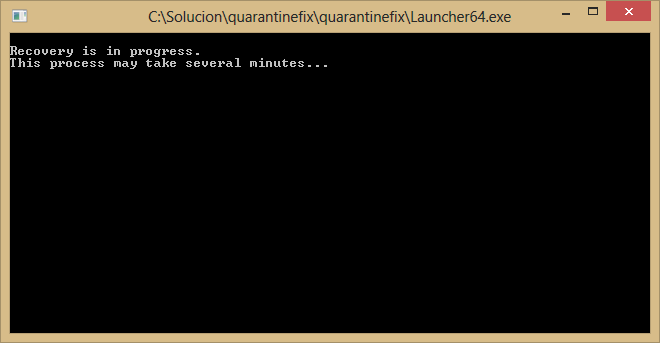
  6. Once it is completed, the tool window will disappear.
  7. Restart the computer and check the issue is solved.

Scenario 2: The computer cannot login in Windows

Please, follow the instructions of article: My computer will not start – Issue with the signature file of 11 March 2015 in PCOP and Retail 2015.


Update 14 – Panda has released another new tool.  This one addresses the errors in comctl32.dll, msvcr90.dll and other DLL files. See the steps below if you are having that issue after performing the steps above:

The following messages are displayed in some scenarios:

“The program can’t start because COMCTL32.dll is missing from your computer. Try installating the program to fix this problem.”

“The application failed to initialize properly (0xc0000135). Click OK to terminate the application.”

Solution

Please, follow the steps below:

  1. Run cmd (command line) as administrator.

  2. From the cmd window, type in the following and press Enter after each command.

    sc stop psinprot
    sc stop psinaflt
    sc stop nanoservicemain

  3. Download and unzip the restorelf.zip file in the C:\ drive, for example.
    IMPORTANT: Do not try running the tool from a pendrive. Always run the tool from your hard drive.

  4. Now, double click the restorelf.exe file for the restoration process to begin.
  5. A window showing the progress of the restore tool will be displayed. It may take a few minutes. Please wait for the process to conclude.
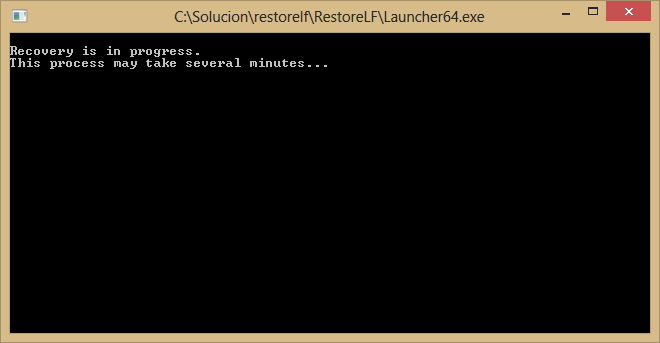
  1. Once it is completed, the tool window will disappear.
  2. Restart the computer and check the issue is solved.
2015-03-17T15:18:45-05:00March 11, 2015|News and Updates|Comments Off on Massive Windows Issues (Panda Antivirus)

Office Closing For Weather

March 5, 2015 – Due to a winter weather warning and deteriorating conditions, the offices of Network Solutions, Inc. are closing early (1:00pm) today.  Phone support will still be available by calling 256-547-6817 and pressing 8.   Email support will also be available at support@internetpro.net.  We apologize for any inconvenience this may cause.

Please check back here for updates on whether the office will open on time tomorrow, March 6.

Update – March 6, 2015: Our office will be open for our regular office hours today.

2015-03-06T12:43:35-06:00March 5, 2015|News and Updates|Comments Off on Office Closing For Weather

Office Closing for Weather

February 25, 2015 – Due to a winter weather warning and deteriorating conditions, the offices of Network Solutions, Inc. are closing early (12:00pm) today.  Phone support will still be available by calling 256-547-6817 and pressing 8.   Email support will also be available at support@internetpro.net.  We apologize for any inconvenience this may cause.

Please check back here for updates on whether the office will open on time tomorrow, February 26.

Update – February 26: Due to the very significant weather event and roads in the area which have been deemed impassible, our office will remain closed today.

Update – February 27:  Our office will be resuming normal business hours today.


2015-02-27T13:14:18-06:00February 25, 2015|News and Updates|Comments Off on Office Closing for Weather

Emergency Maintenance

Date: Tuesday, January 27, 2015:  A critical vulnerability has been found in most Linux operating systems including the distributions we use for all web hosting, email services, and backups.  This vulnerability, nicknamed “Ghost”, is outlined in this article.  We have already patched all servers, but this particular bug requires a reboot of the servers for the fix to take effect.   Therefore, we are scheduling an emergency maintenance window for Thursday the 29th from 12:00am – 3:00am CST (this is Wednesday night into Thursday morning) to perform reboots of all systems affected.   During this time, all services will beaffected at some point.  We do not expect any service to be down for the entire window.

Update:  Maintenance completed as of 2:20am.   All services are functioning normally and the Ghost vulnerability has been patched on all servers.


If you have any questions or concerns about this maintenance, please contact us at support@internetpro.net or 256-547-6817.

2015-01-29T08:21:50-06:00January 27, 2015|News and Updates|Comments Off on Emergency Maintenance

Website/Server Issues

December 23, 2014 – 12:00pm – We experienced a thunderstorm at our datacenter which caused a short power failure.  Unfortunately, we had one UPS system fail for that outage and it affected several VPS machines.  It also affected our monitoring system, so we were unaware of the outage on some  hosts.   This did impact our response time, and some machines were out for about 45 minutes.   All systems are currently back up or are in the process of coming online now.

We do apologize for any trouble this may have caused.   We will be doing an investigation into the UPS failure in a scheduled maintenance window as it will likely cause a small amount of downtime for some hosts when it is checked/replaced.


2014-12-23T18:14:01-06:00December 23, 2014|News and Updates|Comments Off on Website/Server Issues

Mail Server Migration

December 9, 2014 – 11:35am – The new mail server system is live.  We are still moving some of the more recent emails over to the new server, but things are coming online.  Please bear with us while this change happens!   Also, don’t forget to check out the informational post here for more background on what is going on.

Update:  Customers may see some older email come in again and may see some of their recent email disappear.  The recent email will come back shortly.  The old email is email that has been deleted since we synchronized the mailbox.   We have a LOT of data and mailboxes to sync so it is impossible to do them at one time.  There will be some time difference between the migration and they sync and changes made to the mailbox during that time may revert.  You should not LOSE any email – worst case is that you get email again that you have already dealt with.   This is a necessary evil but will pass shortly.

Update 2: We have determined that there is an issue with customers who have “aliased domains”.  This occurs when there two or more domain names which point to the same mailbox.  For instance, user@domain1.com and user@domain2.com are the same account.  Some companies own multiple domains and set up this type of arrangement.   If your company does this, you may have trouble authenticating to receive your email.   We are currently working to fix this issue.

Update 3:   The issue mentioned in Update 2 above should be fixed.   If you are seeing authentication problems, please let us know by calling 256-547-6817.   You should NOT be receiving “bad password” errors.

 Update 4: We do know that the webmail address books did not make the migration to the new server.  This was a known issue which we mentioned on this post.   Please let us know if you need us to help move your address book for you.

Update 5:  It has come to our attention that some Apple devices (iPhones and iPads) using IMAP did not automatically resume working as most devices did (everything else).   This has to do with the nonstandard way that Apple handles folder subscriptions.  The fix is to remove the IMAP account from the device and set it up again.


2014-12-10T13:30:29-06:00December 9, 2014|News and Updates|Comments Off on Mail Server Migration

New Email System

We are bringing the new email system online around 11:00am CST on 12/9/2014.   We are bringing it online during the day instead of during a maintenance window so that we can better troubleshoot issues while people are using their email instead of possibly missing messages in the middle of the night when people aren’t using the system.    Also, we’ll have a full staff available to address any problems which may arise.

Fundamental Change in Dealing with SPAM

The new system brings with it a fundamental change to the way we deal with spam.   In the past, we have tagged messages our system thought were spam with *****SPAM***** in the subject line.   The idea was to leave filtering of the spam to the end user.   However, as global spam volume has increased, people are wanting to just not see spam at all.  Also, devices such as phones and tablets have become more prevalent and those devices generally don’t have good filtering capabilities built in.   So, the new system will concentrate on just keeping spam out of your inbox completely.   Spam messages will now be rejected back to sender by default.

What This Means to You

You will now be able to maintain your own “whitelist” (list of email addresses whose email you always receive) and “blacklist” (list of email addresses you always block).  Using these lists, you will be able to “tweak” your Inbox so that you receive very little spam.   We are also providing templates which will allow you to be more or less aggressive in your spam blocking – more aggressive if you want a cleaner Inbox and less aggressive if you want to insure nothing is ever missed by accident.   You can also set up a “quarantine” which is like a server-side junk folder to hold email which our server thinks might be spam.   However, we recommend you only use this quarantine to perfect your rules so you no longer even have to check that folder.   Messages which are quarantined will automatically be removed by the server after 14 days.

Known Issues with Migration

We’ve been working hard to make the migration as seamless as possible and to minimize downtime.  However, with any large change like this, there will be some issues.  Some of those issues we know about and some will be unforeseen.  Issues we do know about are:

  1. Webmail-based address books aren’t going to automatically transfer over.  If you have a large address book stored in the webmail, please drop us a line at support@internetpro.net and we will move it for you.   Please let us know if the address book is stored in the webmail located at https://webmail.internetpro.net or the one at https://mail.internetpro.net (Legacy).
  2. There will be an increase in spam email when the server first comes online.   We have relaxed our spam rules so that we can address any delivery issues which may arise from the new server.  We will be tightening those rules again as soon as we are sure everything is running smoothly.   Please bear with us during this transition as it will be worth the trouble!


We will be continuing to post more updates and documentation as we get closer to the Go Live time, so please keep checking our website.


2014-12-08T18:07:25-06:00December 8, 2014|Documentation, Internet, News and Updates|Comments Off on New Email System

Comcast Outage

November 24, 2014 – 1:45pm – Comcast is experiencing a large outage in the Gadsden area.  It seems to be a non-local event so it is affecting the entire area.   We have made contact with Comcast, and they do not currently have an accurate estimated time to repair (ETR).  Right now, we just have the generic automatic ETR of 5:56pm.   We’ll be posting updates here as quickly as we get them.

Our phones were also affected by this event, but we have now rerouted our voice traffic so our phones are back up.   We are returning calls as quickly as possible.

 Update 3:25pm –  No real update we’re afraid.  Repeated calls to Comcast reveal that the issue is still unknown.   The estimated time to repair remains the initially generated time of 5:56pm.  For a nice map detailing the nationwide issues Comcast is experiencing, go here:  https://downdetector.com/status/comcast-xfinity/map/


Update 3:50pm – It looks like Comcast has come back up and has been stable for about 10 minutes.   Hopefully, the outage is over.


2014-11-24T21:53:48-06:00November 24, 2014|News and Updates|Comments Off on Comcast Outage

Email Server News

November 18, 2014 – We are preparing for a complete overhaul of our email system which is going to bring a lot of great new features!  We will be making a detailed announcement outlining the new features soon.  In the mean time, we are having to do some work on the existing mail server system to prepare for the migration to the new system.   This in conjunction with the large volume of email being processed daily, is causing some delays in email delivery.   We are aware of the issue and and are trying to minimize it, but it cannot be eliminated right now.   The existing mail hardware is getting a little long in the tooth and that is also contributing to the delays.   Please bear with us as we work to modernize and improve the email system.

We think you’ll be really happy with the new system, as it will be bringing several things like:

  • Improved webmail
  • Improved spam settings and filters including user-specific settings and templates
  • Improved speed
  • Many other features which we will be announcing shortly


We do apologize for any inconvenience this may cause and appreciate your patience as we work to bring you improved services.


2014-11-18T16:33:12-06:00November 18, 2014|News and Updates|Comments Off on Email Server News

NetSol Cloud Desktop Client Updated

November 7, 2014 – We are pleased to announce a new release for the desktop sync client for NetSol Cloud.   This is a major release that brings a lot of new features.  First, it better supports the features introduced in our last major update of NetSol Cloud including the new file sharing.  The new client also now comes with overlay icons in the popular file managers on the supported platforms.  The icons visualize the sync and sharing status of the synced files on the desktop.

Another huge new feature of the new client is the “selective sync”.   Now, within a synced folder, subfolders can be excluded from the client synchronization.  For example, if you sync “My Documents” but have a subfolder inside  My Documents that you don’t want to sync, you can now do t hat.   This makes syncing of large data sets much easier to customize.

This release also brings several smaller improvements which make syncing faster and more reliable.

We do recommend that you upgrade to the new version which you can find on our Desktop Sync Client Page.
If you have any questions or concerns regarding this new release, please contact us at support@internetpro.net.


2014-11-07T15:38:19-06:00November 7, 2014|NetSol Cloud, News and Updates|Comments Off on NetSol Cloud Desktop Client Updated
Go to Top